Changing your password
What this screen is for
The Change your password screen lets you replace your password with one only you know. You see it the first time you sign in with a temporary password that an admin gave you.
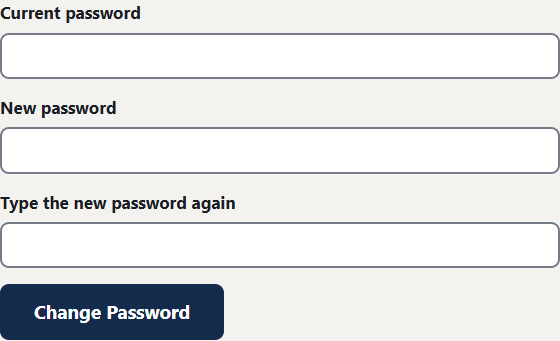
How to change your password
- Type the password you were given (or your current one) in the Current password box.
- Type your new password in the New password box.
- Type the same new password again in the Type the new password again box.
- Press Change Password.
Choosing a good password
- Use at least 12 characters.
- A short sentence you can remember works well. For example: "coffee on the engine at six".
- Do not use department or app names, or the first part of your email.
- Do not use a password that has leaked in a data breach. The app checks and will say no if it has.
- Do not use the same password anywhere else.
- Never share your password. Not even with an admin. They can reset it for you instead.
What happens next
After you change your password, the app may ask you to set up an authenticator app. See Setting up your authenticator app. Then you can use the app as usual.
If something goes wrong
- "Your current password isn't right." Check the temporary password you were given. Type it carefully. After several wrong tries the account is locked for 15 minutes.
- "The two new passwords don't match." Type the same password in both boxes.
- A different message about the new password. Read it. It says what to change, such as making the password longer.
- If your temporary password has expired, ask a BA Shop admin for a new one. See Signing in and out.
- If you forgot your password, ask a BA Shop admin to reset it.