Setting up your authenticator app
What this screen is for
The Set up your authenticator app screen adds a second step to your sign-in. Signing in then takes two steps: your password, and a 6-digit number from an app on your phone. This keeps your account safe even if someone learns your password.
Admins and system administrators must do this. Other people may be asked to as well.
What you need
- Your phone.
- A free authenticator app. Microsoft Authenticator or Google Authenticator both work.
How to set it up
- Install Microsoft Authenticator or Google Authenticator on your phone.
- On the computer screen, find the square code (a QR code). Keep your phone in your hand.
- In the authenticator app on your phone, tap the + button and choose to scan a code.
- Point your phone at the square code on the screen.
- Type the 6-digit number your app now shows in the 6-digit code box.
- Press Turn On.
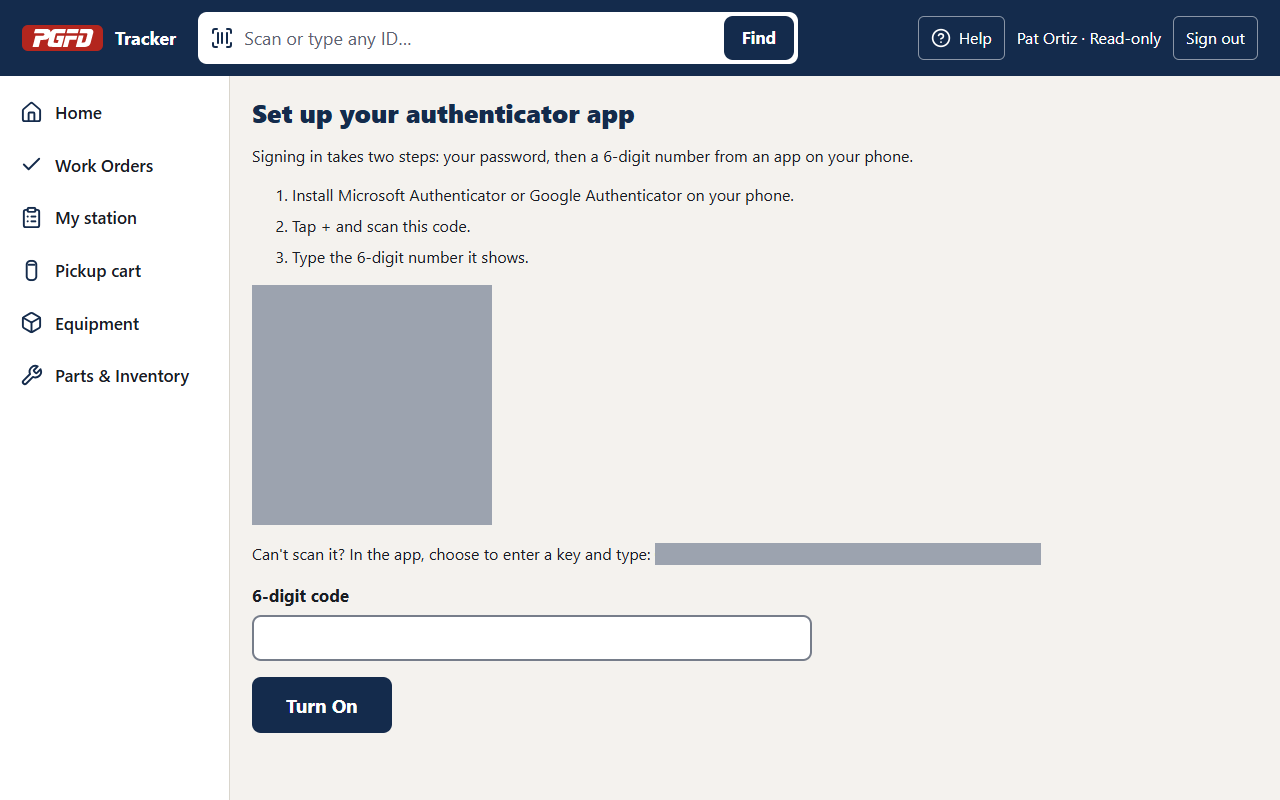
If you cannot scan the code, choose to enter a key in your app. Then type the key shown on the screen under "Can't scan it?".
Save your recovery codes
After you press Turn On, the Your recovery codes screen appears with a list of codes.
- Write the codes down, or print the page.
- Put them somewhere safe, away from your phone.
- Press Continue.
Each code lets you sign in once if you lose your phone. They are shown only this one time.
If your screen says it is already set up
You will see "Your authenticator app is already set up". That is fine. You do not need to do anything. To use a new phone, ask a BA Shop admin to reset your sign-in steps.
If something goes wrong
- "That code didn't work." The number changes about every 30 seconds. Type the newest one. Make sure your phone's clock is set to automatic.
- The square code will not scan. Use the key shown on the screen instead.
- You lost your phone, or got a new one. Ask a BA Shop admin to reset your sign-in steps. You will set it up again the next time you sign in.
- You lost your recovery codes. They cannot be shown again. Ask a BA Shop admin to reset your sign-in steps to get new ones.
- You are asked to change your password first. Do that first. See Changing your password.